











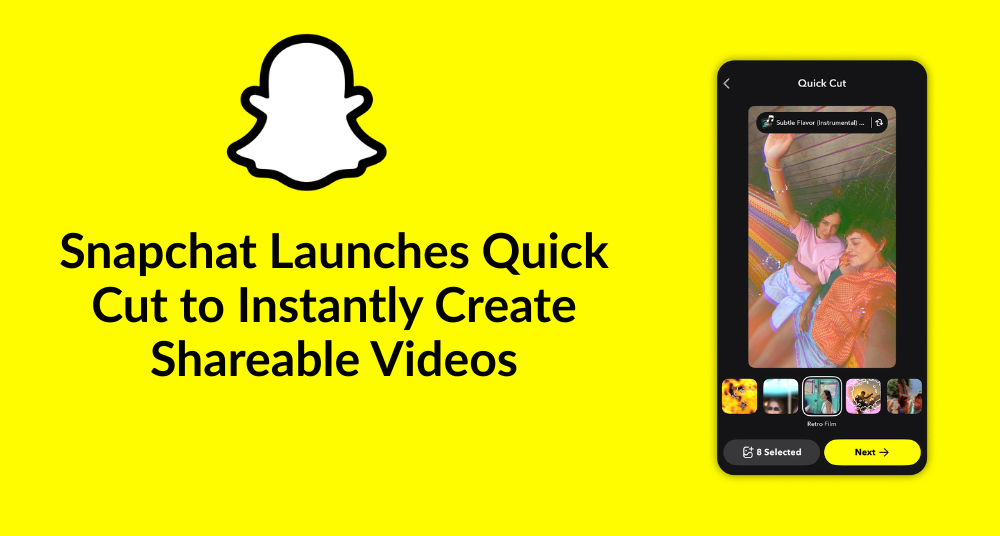



Snapchat — one of the most popular social platforms for fun, expressive, and creative communication — has just taken another huge step forward. With a growing emphasis on video creation, social sharing, and user-generated content, Snapchat has introduced a new in-app video creation tool called Quick Cut. Snapchat Quick Cut feature promises to make video editing faster, easier, and more intuitive than ever — letting users instantly turn their saved memories, clips, and photos into beat-synced, shareable videos.
In this comprehensive guide, we’ll walk through:
- What Quick Cut is
- How it works
- How it fits into Snapchat’s ecosystem
- Why it matters for everyday users and creators
- Step-by-step tips for using it
- Impact on video content trends
Whether you’re a casual Snapchatter, a creator looking to post on Spotlight or Stories, or a marketer exploring social strategy — you’ll want to know how Snapchat Quick Cut empowers you to make compelling videos in seconds.
What is Snapchat Quick Cut?
Quick Cut is a new video creation feature integrated directly into the Snapchat app that helps Snapchatters turn their existing photos and clips from Memories or the camera roll into a finished video quickly. The tool automatically stitches together your media, applies music from Snapchat’s Sounds library, and syncs it all with beat-matched timing — effectively eliminating the need for manual editing steps.
Unlike traditional video editors, where you have to manually trim, sync, position, and edit clips one by one, Snapchat Quick Cut does most of the work for you — instantly rendering a ready-to-share video that you can post in your stories, spotlight, or Snap messages with minimal effort.
Why Snapchat Introduced Quick Cut?
Snapchat’s mission has always been about helping users express themselves — but in a world dominated by short-form video (think TikTok and Instagram Reels), the demand for quick, engaging video content has skyrocketed.
Snapchat Quick Cut is designed to:
- Lower the effort required to create compelling videos
- Bring video editing inside Snapchat without needing third-party apps
- Encourage more users to share creative content
- Help creators compete with other social platforms
This aligns with Snapchat’s broader strategy of expanding its creative tools and keeping users engaged within the app, rather than having them export videos to external editors.
How Snapchat Quick Cut Works?
Step 1 — Choose Your Media
You can start Snapchat Quick Cut from several locations:
- From Memories
- From your Camera Roll
- By selecting media from an existing Snap or creation
Once you choose multiple photos or video clips, Snapchat processes them automatically.
Step 2 — Quick Preview
Instead of waiting for traditional editing steps, you’ll immediately see a preview of the rendered video that’s already stitched together in sequence. Snapchat applies a music track from its Sounds library, and the clips are synced with the beat of the track.
Step 3 — Customize
You’re not locked into the first attempt. Snapchat Quick Cut allows:
- Changing the background music
- Adding or adjusting Snapchat Lenses and filters
- Exploring creative templates if available
- Applying additional effects directly before sharing
This makes the videos uniquely yours and not just auto-generated clips.
Step 4 — Advanced Editing (Optional)
If you want more control, you can use Timeline Editor tools now available in Snapchat Director Mode — allowing fine-tuned edits such as:
- Trimming precisely
- Reordering clips
- Adding voiceovers or captions
This gives creators full control after the Quick Cut auto-generation step.
Where You Can Find Quick Cut?
At launch, Snapchat Quick Cut is rolling out first on iOS, with plans to expand to Android and additional surfaces globally in the coming months — Snapchat states that it will make the feature available wherever user content lives inside the app.
Snapchat is adding multiple entry points so that whether you’re browsing your Memories, selecting from a friend’s Snap, or simply posting a new clip — you can find and use Quick Cut when inspiration strikes.
Creative Possibilities with Quick Cut
Snapchat Quick Cut isn’t just a convenience — it also expands creative potential:
Music-Synced Videos
By auto-applying songs from Snapchat’s Sounds library, Quick Cut instantly adds musical rhythm, making videos feel more polished and shareable. You can even switch tracks.
Lens Effects
Add Snapchat Lenses to your videos, including AR effects, visual filters, and animated graphics — enhancing engagement and personalization.
Reusing and Remixing
If someone shares a Quick Cut video, you can unlock it and insert your own content into the format — promoting remix culture and viral trends.
Templates
Quick Cut may offer various templates that automatically produce engaging, ready-to-share outcomes with different aesthetic styles.
Why Quick Cut Matters for Users and Creators?
The impact of Snapchat Quick Cut stretches beyond ease of use. Here’s why it matters:
Boosts User Creativity
Not everyone has video editing skills or tools — Quick Cut bridges that gap, enabling anyone to produce high-quality, music-synced videos in seconds without learning complex software.
Supports Casual and Pro Creators Alike
Whether you’re posting a fun recap of your day or building a Spotlight reel with professional polish, Quick Cut balances simplicity with creative options.
Drives Engagement and Sharing
Short, dynamic videos are the most engaging content format today — and Quick Cut ensures Snapchat users can produce them faster. This can lead to:
- Higher view rates
- More shares and interactions
- Increased cross-platform content export
Cuts Down on Time and Tools
Previously, users often:
- Captured clips
- Exported them to a third-party editor
- Edited and saved
- Returned to Snapchat to post
Quick Cut removes most of that workflow, keeping creation, editing, and sharing inside Snapchat.
Snapchat’s Strategic Edge
The release of Quick Cut continues Snapchat’s pattern of innovating in-app creation tools — joining features like Timeline Editor and auto-save Memories. This strategy helps Snapchat compete directly with TikTok and Instagram while retaining its unique AR and visual communication strengths.
Tips for Getting the Most Out of Quick Cut
If you want to make standout videos, here are practical tips:
Plan Your Clips
Select moments that tell a story — birthdays, trips, events — so Quick Cut produces a narrative.
Explore Sounds Library First
Choosing the right music track before generating a Quick Cut video can shape the entire mood of your creation.
Experiment With Lenses
Don’t just settle for auto-generated effects — explore Snapchat’s Lens carousel for creative flair.
Use Timeline Editor for Fine Tuning
If you’re building content with precise rhythm or messaging, use the Timeline Editor after the automated Quick Cut process.
Conclusion: A Game Changer for Mobile Video Creation
Snapchat Quick Cut represents a significant leap forward in simplifying video creation — transforming memories into beat-synced, shareable videos with minimal effort. Integrated directly into the app, Quick Cut lets users focus on storytelling and creativity rather than technical editing.
Whether you’re capturing everyday moments or creating content for a wider audience, this new tool makes expressive video creation easier and more accessible than ever — and puts powerful video editing into the hands of every Snapchat user.
Frequently Asked Questions (FAQs)
What exactly is Snapchat Quick Cut?
Quick Cut is a new tool within Snapchat that automatically turns your selected photos and video clips into a beat-synced ready-to-share video.
Can I add music and effects to my Quick Cut video?
Yes — Quick Cut applies music from Snapchat’s Sounds library and lets you customize the track and visual lenses.
Where can I start Quick Cut in Snapchat?
You can start it from Memories, your Camera Roll, or even from someone else’s Quick Cut format.
Is Snapchat Quick Cut available worldwide?
It’s currently available on iOS, with Android support planned to roll out soon.
Do I need advanced editing skills to use Quick Cut?
No — it’s designed to be easy and intuitive, lowering the barrier to making engaging videos.
Can I edit the Quick Cut video further?
Yes — you can use detailed editing tools like Timeline Editor after the initial auto-generated video is created.
Related Blog: Best Free Snapchat Video Downloaders




What do you think?
It is nice to know your opinion. Leave a comment.