









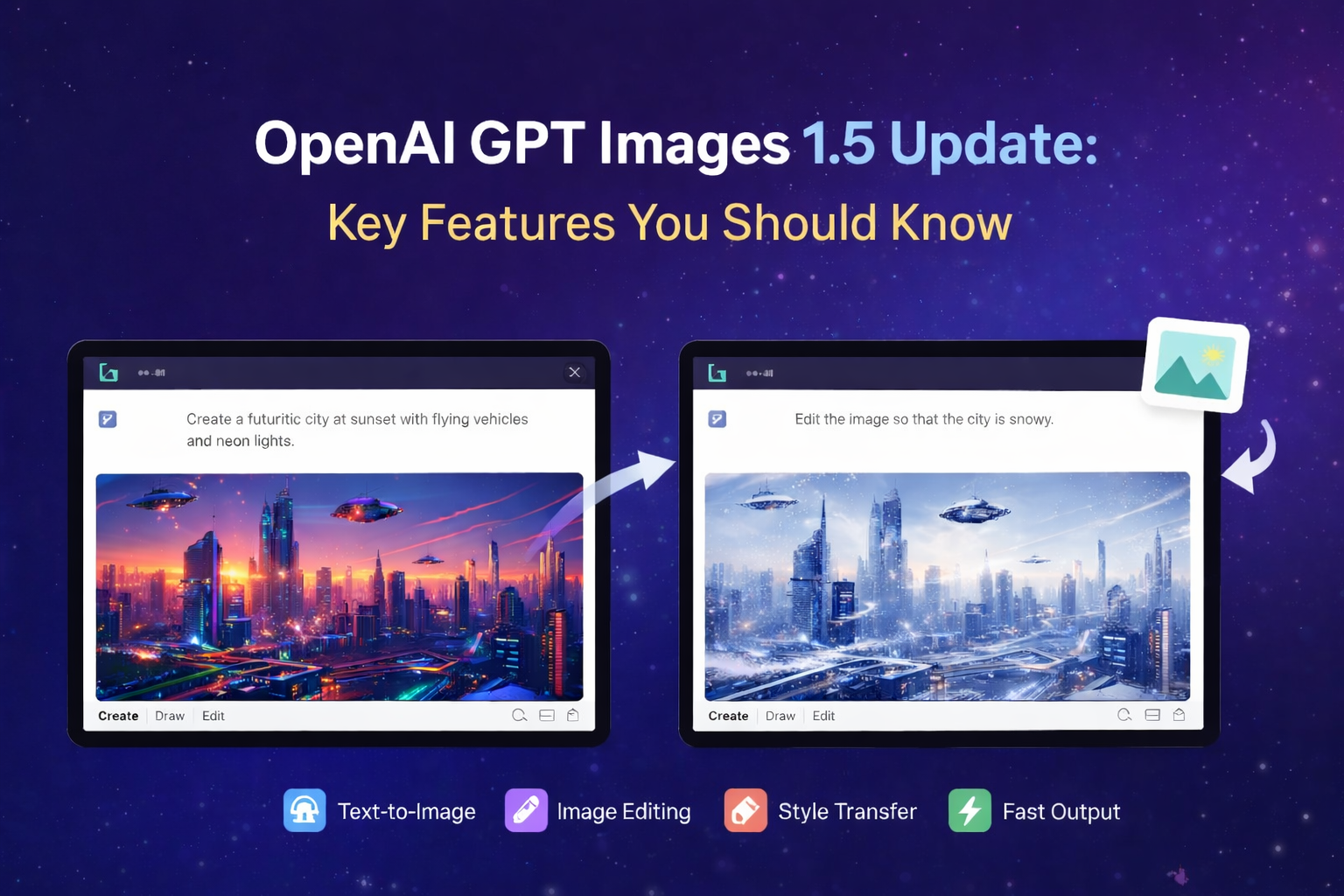


The world of AI-driven creativity just took a major leap forward. With the introduction of ChatGPT’s new image tool powered by GPT Images 1.5, users can now generate and edit images with unprecedented precision, speed, and flexibility — all from inside the familiar ChatGPT interface. Whether you’re a digital artist, marketer, content creator, business owner, or just someone who loves experimenting with AI art, this guide will walk you through everything you need to know to use this powerful tool effectively.
What Is GPT Images 1.5?
At the heart of ChatGPT’s new visual capabilities is GPT Images 1.5 — OpenAI’s latest flagship image generation model. Released in December 2025, GPT Images 1.5 represents a significant upgrade over previous versions, delivering:
- 4× faster image generation and editing, meaning you spend less time waiting and more time creating.
- More accurate adherence to detailed instructions, so the visuals you get match your prompt more closely.
- Improved precision in edits, preserving what matters in your image while modifying exactly what you ask for.
- Better text rendering — a big plus for designs, posters, UI work, and graphics with typography.
This means that both creative explorations and real-world workflows become significantly easier and more effective, blending artistic freedom with practical output quality.
Why GPT Images 1.5 Is a Big Deal?
Before we dive into how to actually use the tool, let’s explore why this upgrade is significant:
Creative Studio in Your Pocket
With GPT Images 1.5 inside ChatGPT, you no longer need a separate AI art generator or photo editing tool — image generation and editing happen within a single intuitive workspace.
Precision That Keeps the Important Parts
Previously, some AI image tools might heavily alter backgrounds, lighting, or facial features during edits. GPT Images 1.5 focuses on keeping what matters — preserving lighting, composition, and individual traits while changing only what you request.
Speed for Iterative Creativity
Fast generation speeds mean you can iterate rapidly — crucial for designers, marketers, and social media teams who need multiple versions of a concept before choosing a final visual.
High-Quality Output for Professional Use
With better text reproduction and more coherent visuals, outputs are suitable not just for fun or personal use, but commercial projects like ads, brand visuals, thumbnails, banners, and UI mockups.
Where to Find the Image Tool in ChatGPT?
Getting started with the image tool is easy and requires nothing more than logging into your ChatGPT account.
- Open the ChatGPT web app or mobile app.
- Look for the “Images” tab or sidebar — this is your creative hub for image tasks.
- Once you open this workspace, you can begin generating and editing images immediately.
The tool is designed for both beginners and pros, with quick starters like preset styles and trending prompts alongside deeper manual control.
How to Generate Images with ChatGPT’s New Image Tool?
Step 1: Write a Clear, Descriptive Prompt
The foundation of good AI images is a well-crafted prompt. For example:
“Create a cyberpunk cityscape at dusk with neon lights, reflective rain-soaked streets, and flying vehicles, in a cinematic widescreen style.”
Tips:
- Be specific about style, lighting, mood, and composition.
- Mention colors and scene details.
- If you want text in the image (like a poster), include exact wording and formatting hints.
GPT Images 1.5 handles text inside visuals much better than older models, so dense or small text can appear accurate and readable.
Step 2: Pick a Style (Optional)
You can use built-in preset styles like “photorealistic,” “sketch,” “watercolor,” or “fantasy” to guide the output.
Step 3: Review and Refine
Images are generated fast — often in seconds. If the first output isn’t exactly right:
- Ask for small changes.
- Clarify any ambiguous details.
- Change the style or add more specifics.
This iterative refinement works best with multiple focused edits rather than one huge prompt.
Upload & Edit Existing Photos
GPT Images 1.5 isn’t just about creating visuals from text — it excels at editing existing images. Here’s how:
- Upload the image you want to edit.
- Describe the change you want in natural language.
Examples:
- “Change the background to a beach at sunset.”
- “Add a futuristic helmet to this person.”
- “Replace the sky with dramatic storm clouds.”
Advanced edits preserve key elements like facial features, lighting, and composition while applying only the modifications you request.
Use Cases & Real-World Examples
GPT Images 1.5 isn’t just a novelty — it solves real problems and offers creative possibilities across industries.
Marketing & Advertising
Create campaign visuals, social media artwork, banners, and product mockups — all tailored to your brand’s style.
E-Commerce & Product Catalogs
Generate consistent product shots or lifestyle images with branded backgrounds and professional layouts.
Content Creation
YouTubers, bloggers, and social media creators can quickly generate thumbnails, concept art, or featured visuals.
Personal Projects & Art
From character art to fantasy landscapes and abstract ideas, the tool enables artistic expression.
Advanced Tips for Power Users
If you want to go beyond the basics:
- Specify Art Movements or Artists — Use artistic references for stylistic influence (e.g., “in the style of vintage sci-fi posters”).
- Combine Outputs — Generate multiple passes and blend them later using editing prompts.
- Control Aspect Ratio & Size — Mention target resolution for specific use (e.g., “1920×1080 poster layout”).
- Iterative Prompting — Use the previous image as context to refine changes progressively.
These techniques help when you want precision or are working toward a specific visual outcome.
What’s New in the GPT Images Experience
GPT Images 1.5 comes with several UI & experience upgrades:
Dedicated Images Workspace
A dedicated space inside ChatGPT with presets and trending prompts helps kickstart creativity.
Faster Edits & Parallel Generation
Generate multiple versions simultaneously or continue crafting while others are being processed.
One-Time Likeness Upload
You can upload your likeness once and reuse it in future creations.
These upgrades make the tool feel more like a visual creative studio than just an image generator.
Limitations & Realistic Expectations
Despite major improvements, GPT Images 1.5 isn’t perfect:
- Some styles may still be imperfectly rendered.
- Complex scenes with many characters or faces can sometimes struggle with consistency.
- As with all AI images, ethical and copyright considerations should guide your use.
Understanding limitations helps you set realistic expectations and use the tool more effectively.
Downloading, Sharing & Using Your Images
Once you’re happy with the image:
- Download directly from the ChatGPT interface.
- Use it in your projects — marketing, web design, presentations, or personal galleries.
- Always review usage rights and ensure compliance with OpenAI’s policies when using images commercially.
Conclusion
ChatGPT’s new image tool powered by GPT Images 1.5 is a game-changer for visual creativity. It combines speed, precision, and ease of use in a way that makes both casual users and professionals excited to explore AI-generated visuals. From generating original images to refining existing ones with detailed instructions, the new image tool lets you bring ideas to life faster and with more control than ever before.
With thoughtful prompts and a bit of practice, you can create stunning, high-quality images right inside ChatGPT — making this an indispensable tool for individuals and teams across industries.
FAQs
What is GPT Images 1.5?
It’s the latest image generation and editing model from OpenAI, powering the new ChatGPT Images tool with faster output and more accurate results.
How do I use it to generate images?
In ChatGPT, go to the Images section, type a descriptive prompt, and the model will generate visuals based on your request.
Can it edit existing photos?
Yes — upload an image and describe the change you want; it edits only the parts you ask while preserving the rest.
Is it faster than older tools?
Yes — image generation and edits are up to 4× faster than before.
Does it handle text inside images better?
Yes — the model can render small or dense text more clearly in generated images.
Who can access this feature?
It’s rolling out to most ChatGPT users globally and is also available via the API.
Related Blog: OpenAI Launches ChatGPT 5.2




What do you think?
It is nice to know your opinion. Leave a comment.